Budget Proxmox Homelab Build (2024)
Build a powerful virtualization server for under $500. Run Plex, Home Assistant, Docker, and more with Proxmox VE on budget-friendly hardware.
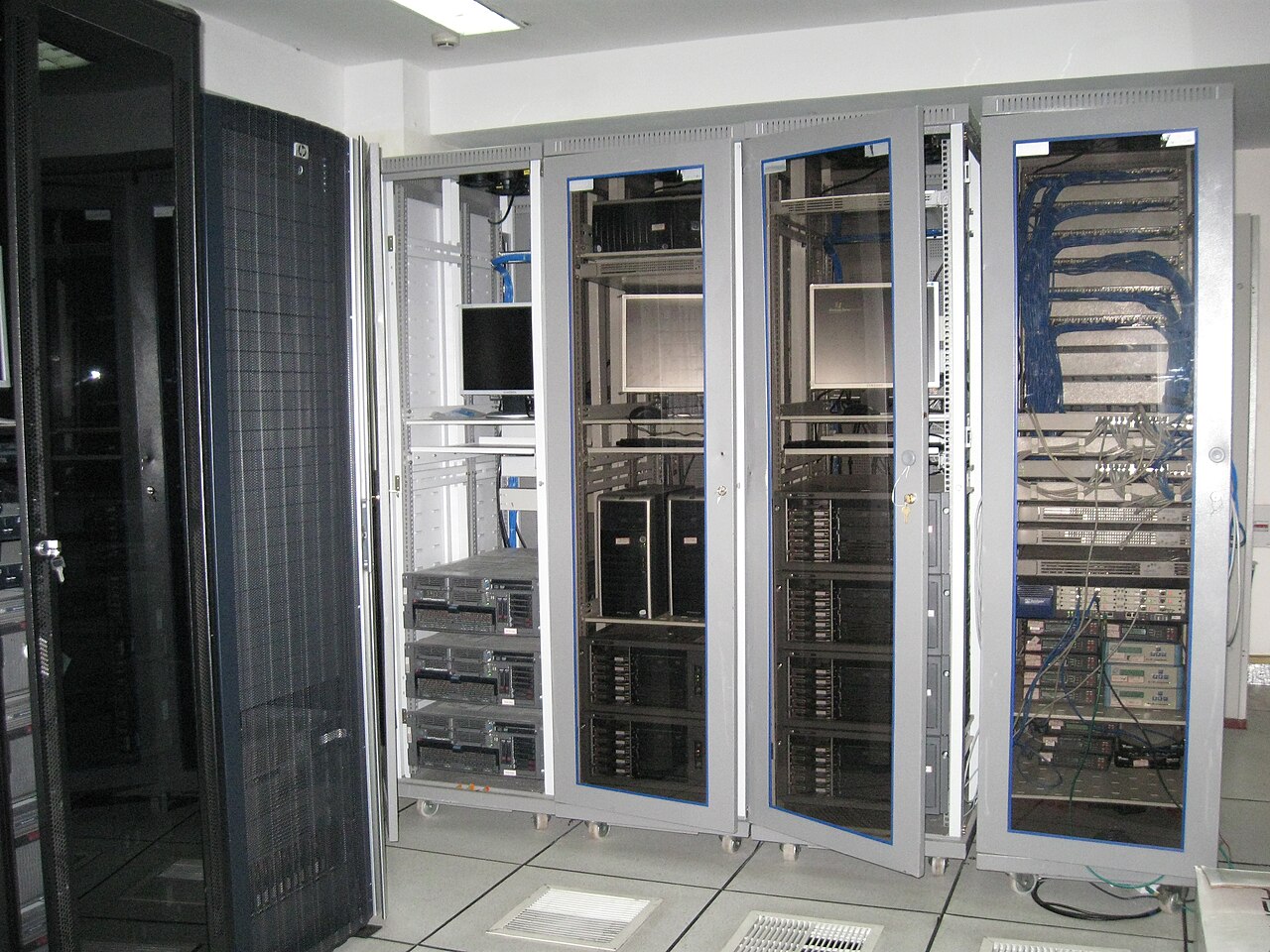
Table of Contents
- Why Build a Proxmox Homelab?
- What You Can Run on a Budget Proxmox Server
- Hardware Options: The Budget Continuum
- Path 1: Used Enterprise Gear ($200-400)
- Path 2: New Mini PCs ($250-500)
- Path 3: Custom Budget Build ($350-600)
- Recommended Build: Beelink SER5 Pro
- Parts List
- Installing Proxmox VE
- Step 1: Download Proxmox VE
- Step 2: Prepare Your Mini PC
- Step 3: Run the Installer
- Step 4: First Boot
- Post-Installation Configuration
- Remove the Enterprise Repository
- Install Useful Tools
- Setting Up Storage
- Understanding Proxmox Storage
- Configure USB Drive for Backups
- Your First Container: Pi-hole
- Create the Container
- Install Pi-hole
- Your First VM: Home Assistant
- Download and Import
- Performance Optimization Tips
- Enable Kernel Same-Page Merging (KSM)
- Tune ZFS ARC Size
- CPU Governor
- Common Issues and Solutions
- ”No valid subscription” Popup
- Can’t Access Web Interface
- Container Won’t Start
- Poor VM Performance
- Next Steps
- Summary
Why Build a Proxmox Homelab?
You’ve probably heard the buzz about Proxmox in homelab circles. There’s a reason it’s become the go-to virtualization platform for home servers: it’s free, powerful, and incredibly flexible.
But here’s the catch most guides ignore — building a Proxmox server doesn’t require a massive enterprise rack. You don’t need dual Xeons, 128GB of ECC RAM, or a 12-bay chassis.
For most home users running Docker containers, a few VMs, and maybe a media server, a mini PC can handle everything.
This guide shows you how to build a capable Proxmox homelab server for $300-$600, depending on your choices. Whether you’re starting fresh or repurposing existing hardware, you’ll have a fully functional virtualization platform by the end.

What You Can Run on a Budget Proxmox Server
Before we dive into hardware, let’s talk about what this build can actually handle:
Containers (via LXC or Docker VM):
- Home Assistant — Home automation hub
- Plex/Jellyfin — Media streaming server
- Pi-hole — Network-wide ad blocking
- Nextcloud — Self-hosted cloud storage
- Vaultwarden — Self-hosted Bitwarden
- Nginx Proxy Manager — Reverse proxy for services
Virtual Machines:
- Windows 11 — For testing or specific apps
- Ubuntu Server — Additional Linux workloads
- pfSense/OPNsense — Router/firewall (if you have multiple NICs)
Start with containers for services. They use far fewer resources than full VMs. A single mini PC can run 20+ containers simultaneously with minimal overhead.
Hardware Options: The Budget Continuum
There are three main paths for budget Proxmox builds:
Path 1: Used Enterprise Gear ($200-400)
- Dell Wyse 5070 — Tiny, power-efficient, ~$100-150
- HP EliteDesk 800 G3/G4 Mini — Excellent value, ~$150-250
- Lenovo ThinkCentre Tiny M720q — Great expandability, ~$150-200
Pros: Built like tanks, widely available, often include vPro for remote management Cons: Older hardware, limited upgrade paths, can be loud under load
Path 2: New Mini PCs ($250-500)
- Beelink SER5 — AMD Ryzen 5 5560U, 32GB RAM capable, ~$200
- Minisforum UM560 — Ryzen 5 5600H, excellent performance, ~$300
- Intel NUC 12 Pro — i5-1240P, premium build, ~$400-500
Pros: Modern CPUs, warranty support, power efficient Cons: Higher cost, some brands have quality variance
Path 3: Custom Budget Build ($350-600)
- CPU: Intel i3-12100 or AMD Ryzen 5 5600G
- Motherboard: B660 or B550 mATX
- RAM: 32GB DDR4
- Case: Small form factor or standard ATX
Pros: Maximum flexibility, easier storage expansion, repairable Cons: Larger footprint, more assembly required

Recommended Build: Beelink SER5 Pro
For this guide, I’m recommending the Beelink SER5 Pro as our primary option. Here’s why:
- CPU: AMD Ryzen 7 5800H (8 cores, 16 threads)
- Stock RAM: 32GB DDR4 included
- Stock Storage: 500GB NVMe included
- Price: ~$220-280 on Amazon
- Power: 15-45W TDP (very efficient)
This represents incredible value. The 5800H alone would cost $200+ as a standalone CPU, yet you get a complete system with RAM and storage for not much more.
Always verify RAM expansion limits before buying. Some mini PCs have soldered RAM. The SER5 has two SO-DIMM slots and supports up to 64GB total.
Parts List
Parts Used
| Component | Model | Price |
|---|---|---|
| Mini PC | Beelink SER5 Pro | $250 |
| RAM Upgrade | 32GB DDR4-3200 SO-DIMM (additional) | $60 |
| Primary Storage | 1TB NVMe SSD | $70 |
| Secondary Storage | 2TB USB 3.0 HDD | $50 |
| UPS Battery Backup | APC BE600M1 | $70 |
| Cat6 Ethernet Cable | 25ft shielded | $12 |
| USB Flash Drive | 16GB for Proxmox installer | $8 |
| Total | $520 | |
* Prices are approximate at time of purchase. Links may include affiliate commissions.
Total Build Cost: ~$520 (can be reduced to ~$300 with base specs)
Why a UPS matters: Proxmox uses ZFS for storage, and ZFS hates sudden power loss. A $70 UPS protects your data and prevents corruption during outages.
Installing Proxmox VE
Step 1: Download Proxmox VE
- Visit proxmox.com/downloads
- Download the latest ISO (Proxmox VE 8.x as of 2024)
- Flash to a USB drive using Rufus (Windows) or balenaEtcher (macOS/Linux)
# On Linux/macOS, you can also use dd
sudo dd if=proxmox-ve_8.0.iso of=/dev/sdX bs=1M status=progress && sync
Step 2: Prepare Your Mini PC
- Enter BIOS by pressing F2, F7, or Del during boot
- Enable virtualization (AMD-V or Intel VT-x)
- Disable Secure Boot (Proxmox requires this)
- Set boot priority to USB first
- Save and exit
Step 3: Run the Installer
- Boot from the USB drive
- Select “Install Proxmox VE”
- Accept the EULA
- Choose your target disk (the NVMe drive)
- Set your country, timezone, and keyboard layout
- Enter a password and email for the admin account
- Configure networking:
- Static IP recommended (e.g., 192.168.1.100)
- Gateway: your router’s IP
- DNS: 1.1.1.1 or your preferred DNS
The installer runs for 5-10 minutes. Once complete, remove the USB and reboot.
Step 4: First Boot
After rebooting, you’ll see the Proxmox web interface URL displayed on the console:
Proxmox VE 8.x
IP: https://192.168.1.100:8006/
Open that URL in your browser. You’ll get a certificate warning — this is normal for self-signed certificates. Accept it and continue.
Bookmark your Proxmox URL. You’ll be accessing it frequently. Consider setting up a local DNS entry like proxmox.local for easier access.
Post-Installation Configuration
Remove the Enterprise Repository
By default, Proxmox uses the enterprise repository which requires a paid subscription. Switch to the free community repository:
# SSH into your Proxmox server
ssh [email protected]

# Remove enterprise repository
rm /etc/apt/sources.list.d/pve-enterprise.list

# Add community repository
echo "deb http://download.proxmox.com/debian/pve bookworm pve-no-subscription" > /etc/apt/sources.list.d/pve-no-subscription.list

# Update system
apt update && apt dist-upgrade -y
Install Useful Tools
# Install common utilities
apt install -y vim htop iotop ncdu tmux

# Remove the subscription nag popup
sed -i.backup -r "s/(Ext.Msg.show\(\{title: gettext\('No valid subscription)/void\(\{ \/\/\1/g" /usr/share/javascript/proxmox-widget-toolkit/proxmoxlib.js

# Restart the web interface
systemctl restart pveproxyRemoving the subscription nag is technically unsupported. If you can afford it, consider a Proxmox subscription — it supports development and provides enterprise support.
Setting Up Storage
Understanding Proxmox Storage
Proxmox has several storage types:
- local-lvm: Default VM/CT storage (thin provisioning)
- local: For ISO images, backups, snippets
- Directory: Any mounted filesystem
- ZFS: Enterprise-grade with compression, snapshots, redundancy
For a single-disk mini PC, we’ll keep it simple:
Configure USB Drive for Backups
# Identify your USB drive
lsblk

# Create filesystem (WARNING: destroys all data)
mkfs.ext4 -L backups /dev/sda1

# Create mount point
mkdir /mnt/backups

# Add to fstab for auto-mount
echo "LABEL=backups /mnt/backups ext4 defaults 0 2" >> /etc/fstab
mount /mnt/backups

# Add to Proxmox storage config
# Go to Datacenter > Storage > Add > Directory
# ID: backups
# Directory: /mnt/backups
# Content: VZDump backup file, ISO imageSet up automated backups to your USB drive. Go to Datacenter > Backup > Add and schedule daily backups of your VMs and containers.
Your First Container: Pi-hole
Let’s create your first LXC container with Pi-hole for network-wide ad blocking.
Create the Container
-
Download a container template:
- Go to your node > local (pve) > CT Templates > Templates
- Search for “debian-12” and download it
-
Create the container:
- Click “Create CT” in the top right
- Hostname:
pihole - Password: [set a strong password]
- Template: debian-12-standard
- Storage: local-lvm
- Disk size: 8GB
- CPU: 1 core
- Memory: 512MB
- Network: Bridged to vmbr0, static IP (e.g., 192.168.1.2/24)
- DNS: 1.1.1.1
-
Start the container and open the console
Install Pi-hole
# Update the container
apt update && apt upgrade -y

# Install Pi-hole
curl -sSL https://install.pi-hole.net | bash
Follow the interactive installer. When prompted:
- Select your upstream DNS provider
- Choose the default blocking list
- Enable the web interface
- Set your static IP configuration
The $35 Pi Alternative: A Pi-hole container uses ~50MB RAM. Running it on your Proxmox server instead of a Raspberry Pi saves money, power, and eliminates SD card corruption issues.
Your First VM: Home Assistant
Home Assistant runs great as a VM using their official KVM/Proxmox image.
Download and Import
# Download the Home Assistant KVM image
wget https://github.com/home-assistant/operating-system/releases/download/11.4/haos_ova-11.4.qcow2.xz

# Decompress
xz -d haos_ova-11.4.qcow2.xz

# Import to Proxmox
qm importdisk 100 haos_ova-11.4.qcow2 local-lvm
Then in the Proxmox web UI:
- Create a new VM with ID 100
- Don’t add a disk (we imported one)
- Add the imported disk in Hardware settings
- Set boot order to disk first
- Start the VM
Access Home Assistant at http://[VM-IP]:8123
Performance Optimization Tips
Enable Kernel Same-Page Merging (KSM)
KSM deduplicates memory pages between VMs, saving RAM:
# Enable KSM
echo 1 > /sys/kernel/mm/ksm/run
echo 1000 > /sys/kernel/mm/ksm/sleep_millisecs

# Make permanent
echo "KSLEEP_MILLISECONDS=1000" >> /etc/default/ksmtuned
systemctl enable --now ksmtuned
Tune ZFS ARC Size
If using ZFS, limit the ARC cache to prevent memory exhaustion:
# Limit ARC to 4GB on a 16GB system
echo "options zfs zfs_arc_max=4294967296" > /etc/modprobe.d/zfs.conf
CPU Governor
Set performance mode for VM workloads:
# Check current governor
cat /sys/devices/system/cpu/cpu*/cpufreq/scaling_governor

# Set to performance
cpupower frequency-set -g performanceMonitor your system with htop and pvesh to understand real resource usage. Most home workloads are memory-bound, not CPU-bound.
Common Issues and Solutions
”No valid subscription” Popup
We covered this earlier, but if it returns after updates:
# Repeat the sed command post-update
sed -i.backup -r "s/(Ext.Msg.show\(\{title: gettext\('No valid subscription)/void\(\{ \/\/\1/g" /usr/share/javascript/proxmox-widget-toolkit/proxmoxlib.js
systemctl restart pveproxy
Can’t Access Web Interface
- Check firewall:
ufw statusoriptables -L - Verify the service:
systemctl status pveproxy - Check the port:
netstat -tlnp | grep 8006
Container Won’t Start
LXC containers need special permissions for certain hardware:
- Go to Container > Options > Features
- Enable: nesting, keyctl (for Docker inside LXC)
Poor VM Performance
- Enable VirtIO drivers in VM settings
- Use VirtIO SCSI for storage
- Enable balloon memory (dynamic RAM allocation)
Next Steps
Once your base system is running, consider:
- Set up backups — Proxmox Backup Server is excellent and free
- Configure VLANs — Isolate IoT devices, guest networks
- Add more storage — External USB drives work great for media
- Explore containers — Tteck’s Proxmox VE Helper Scripts have 200+ container templates:
https://tteck.github.io/Proxmox/
Summary
Building a Proxmox homelab doesn’t require enterprise hardware. A single mini PC with 8 cores, 32GB RAM, and 1TB storage can run:
- Home Assistant for smart home control
- Pi-hole for network-wide ad blocking
- Plex for media streaming
- Docker containers for any self-hosted service
- Windows/Linux VMs for testing
Total investment: $300-600, with power consumption under 50W.
The best part? You’re learning enterprise-grade virtualization on budget hardware. The skills you develop translate directly to professional environments.
Questions? Join the r/homelab and r/Proxmox communities on Reddit. The Proxmox forums are also incredibly helpful for troubleshooting.
Build updated: February 2024. Prices and availability may vary. This article contains affiliate links that support the site at no cost to you.

If you liked this, check out...
10G 20TB Plex NAS Build
Build a high-performance media server with 10G networking, massive storage, and the flexibility of Unraid. Stream anything, anywhere, to anyone.
Homelab Server Rack Build
One rack to rule them all. A 25U server rack housing the Dell R620, switches, PDUs, and all the networking gear needed for a serious homelab.
Comments
Powered by GitHub Discussions