Self-Hosted File Sync with Syncthing: A Complete Guide
Ditch the cloud and take control of your file synchronization with Syncthing. Learn how to set up secure, private P2P sync across all your devices.
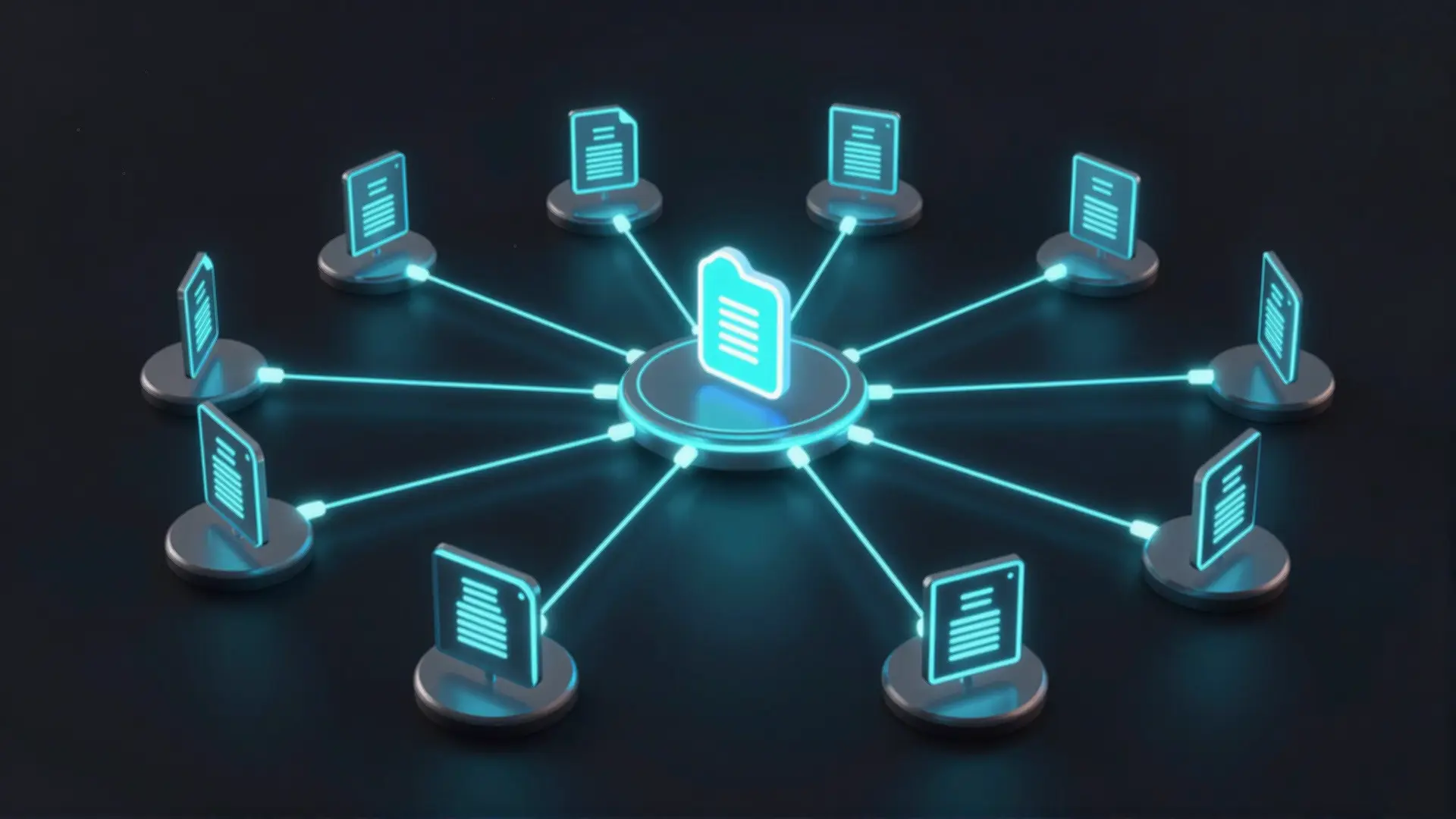
Table of Contents
- Why Syncthing?
- How Syncthing Works
- Installing Syncthing with Docker
- Initial Configuration
- Setting Up Security
- Getting Your Device ID
- Connecting Your First Device
- On the Server
- On the Laptop
- Sharing Your First Folder
- On the Source Device
- On the Target Device
- Homelab Use Cases
- 1. Photo Backup from Phone
- 2. Server Configuration Sync
- 3. Development Projects
- 4. Password Database
- 5. Media Libraries
- File Versioning: Your Safety Net
- Versioning Strategies
- Performance Tips
- Block-Level Sync
- Scan Intervals
- Ignore Patterns
- Security Best Practices
- Local Network Only
- Self-Hosted Discovery
- HTTPS for GUI
- Comparison: Syncthing vs Alternatives
- Common Issues and Solutions
- Connection Fails Between Devices
- Sync is Slow
- High CPU Usage
- The Verdict
If you’ve ever wished you could sync files between your devices without trusting a third-party cloud provider, Syncthing is the answer. This open-source, peer-to-peer file synchronization tool gives you complete control over your data while keeping it synchronized across all your machines.
After years of using cloud services like Dropbox and Google Drive, I made the switch to Syncthing in my homelab. The result? Faster syncs, no monthly fees, and complete privacy. Here’s everything you need to know to get started.
Why Syncthing?
Traditional cloud storage services have a fundamental problem: your data lives on someone else’s servers. Even with encryption at rest, you’re trusting a company with your files, paying monthly fees, and dealing with storage limits.
Syncthing takes a different approach. It syncs your files directly between your own devices using end-to-end encryption. No middleman. No cloud. Just your machines talking to each other.
Key benefits:
- Privacy: Your data never leaves your network (unless you want it to)
- No storage limits: Sync as much as your hard drives can hold
- No monthly fees: It’s completely free and open source
- Cross-platform: Works on Windows, macOS, Linux, Android, and more
- Fast: Block-level sync only transfers what changed
How Syncthing Works
Syncthing uses a peer-to-peer architecture. Each device runs the Syncthing software and maintains a list of trusted devices. When you add a folder to share, Syncthing establishes encrypted connections to your other devices and begins synchronizing.
The magic is in the details:
- Device IDs: Each installation generates a unique cryptographic ID used for authentication
- Mutual trust: Both devices must explicitly add each other before syncing
- Block-level sync: Only changed portions of files transfer, not entire files
- Conflict resolution: Built-in versioning handles simultaneous edits gracefully
Installing Syncthing with Docker
The cleanest way to run Syncthing in a homelab is via Docker. Here’s a production-ready docker-compose.yml:
services:
  syncthing:
    image: linuxserver/syncthing:latest
    container_name: syncthing
    hostname: syncthing-server
    environment:
      - PUID=1000
      - PGID=1000
      - TZ=America/New_York
    volumes:
      - ./config:/config
      - /mnt/storage/sync:/data
    ports:
      - "8384:8384"      # Web UI
      - "22000:22000/tcp"  # Sync protocol (TCP)
      - "21027:21027/udp"  # Discovery (UDP)
    restart: unless-stopped
Important configuration notes:
PUIDandPGIDshould match your host user IDs (runid -uandid -gto find them)- Mount your storage location to
/datafor synced files - The
/configvolume stores your device ID and settings persistently
Start with:
docker compose up -d
docker compose logs -f  # Watch for startup messages
Initial Configuration
Once running, access the web interface at http://your-server:8384. The first thing you’ll see is a warning about setting a GUI password—do this immediately.
Setting Up Security
- Click Actions → Settings → GUI
- Set a strong username and password
- Enable HTTPS if you’ll access the GUI remotely
- Consider binding to
0.0.0.0only if you need remote access
Getting Your Device ID
Your Device ID is how other devices find and authenticate with this installation. To find it:
- Click Actions → Show ID
- Copy the long alphanumeric string
- You’ll need this ID when adding this device to others
Connecting Your First Device
Let’s connect two devices—a server and a laptop:
On the Server
- Click Add Remote Device (bottom right)
- Enter your laptop’s Device ID
- Give it a recognizable name like “MacBook Pro”
- Leave the defaults and click Save
On the Laptop
- Install Syncthing (via package manager, brew, or download)
- Access
http://localhost:8384 - You’ll see a prompt: “Device [server-id] wants to connect”
- Click Add Device to accept the connection
The connection is now mutual and encrypted.
Sharing Your First Folder
With devices connected, you need to share folders:
On the Source Device
- Click Add Folder
- Set a Folder Label (e.g., “Documents”)
- Set the Folder Path (e.g.,
/data/documents) - Click Sharing and check the target device
- Click Save
On the Target Device
- You’ll see a prompt: “Share folder ‘Documents’?”
- Click Add and set a local path
- Click Save to confirm
You can also set folder types:
- Send & Receive: Two-way sync (default)
- Send Only: This device sends changes but ignores incoming ones
- Receive Only: This device receives changes but doesn’t send local modifications
Homelab Use Cases
After running Syncthing for over a year, here are my most valuable syncing scenarios:
1. Photo Backup from Phone
Enable auto-sync from your phone’s camera roll to a receive-only folder on your NAS. Every photo you take automatically appears on your server—no cloud subscription required.
2. Server Configuration Sync
Keep configuration directories synced across your homelab servers:
/etc/nginx/sites-enabledsynced across nginx clusters- Docker compose files replicated for redundancy
- Prometheus/Grafana dashboards available everywhere
3. Development Projects
Sync active projects between your workstation and a build server. Changes on your laptop appear instantly on the build machine.
4. Password Database
If you use KeePassXC or similar, sync your .kdbx file across all devices. Changes sync instantly, and file versioning protects against corruption.
5. Media Libraries
Sync downloaded media or transcoded files from a processing server to your media storage.
File Versioning: Your Safety Net
One of Syncthing’s most powerful features is built-in file versioning. When a file changes, Syncthing can keep old versions before overwriting.
Versioning Strategies
| Type | Best For | How It Works |
|---|---|---|
| Trash Can | Simple protection | Moves deleted files to .stversions folder |
| Simple | Limited history | Keeps last N versions of each file |
| Staggered | Long-term protection | Keeps versions at increasing intervals |
| External | Custom workflows | Runs a script for each version |
I recommend Staggered File Versioning for most use cases:
- Keeps versions for up to 1 year
- Uses 1 per hour for first day, 1 per day for first month, 1 per week after
- Prevents catastrophic data loss from accidental deletes or ransomware
Enable it in folder settings under File Versioning.
Performance Tips
Block-Level Sync
Syncthing only transfers changed blocks within files, not entire files. This makes it incredibly efficient for large files like VM images or video projects.
Scan Intervals
By default, Syncthing rescans folders every 60 seconds. For actively-changing directories, reduce this:
- Edit folder settings
- Advanced → Rescan Interval
- Set to
10for near-real-time sync
For static folders, increase to 3600 (1 hour) to save CPU.
Ignore Patterns
Use .stignore files to exclude files from sync:
# Common exclusions
.DS_Store
*.bak
node_modules/
.git/
*.tmp
Place .stignore in the root of any shared folder.
Security Best Practices
Local Network Only
If you only sync within your home network, disable external discovery:
- Actions → Settings → Connections
- Uncheck Global Discovery
- Uncheck Enable Relays
This prevents your device IDs from being shared with public servers.
Self-Hosted Discovery
For remote access without exposing your IP, run your own discovery server:
docker run -d \
  --name syncthing-discovery \
  -p 8443:8443 \
  syncthing/discosrv
Then configure your devices to use your discovery server instead of the public ones.
HTTPS for GUI
Enable encrypted GUI access:
- Actions → Settings → GUI
- Check Use HTTPS
- Restart Syncthing
- Access via
https://your-server:8384
Comparison: Syncthing vs Alternatives
| Feature | Syncthing | Resilio Sync | Nextcloud |
|---|---|---|---|
| License | Open Source | Proprietary | Open Source |
| Architecture | P2P | P2P | Client-Server |
| Cost | Free | Free tier + Paid | Free (self-hosted) |
| Encryption | End-to-end | End-to-end | Server-side |
| Mobile Support | Android official | Full support | Full support |
| Setup Complexity | Moderate | Easy | Higher |
Choose Syncthing if: You want open-source, transparent software with no vendor lock-in.
Choose Resilio Sync if: You need faster performance with very large files and don’t mind proprietary software.
Choose Nextcloud if: You want a full suite including calendar, contacts, and collaboration tools alongside file sync.
Common Issues and Solutions
Connection Fails Between Devices
Symptoms: Devices show as “Disconnected” or “Unknown”
Solutions:
- Check firewall rules (ports 22000 TCP, 21027 UDP)
- Verify Device IDs match on both ends
- Ensure time is synced (NTP) on both devices
- Check if Symmetric NAT is blocking connections
Sync is Slow
Solutions:
- Reduce rescan interval for active folders
- Check network bandwidth between devices
- Enable “Use Large Blocks” in Advanced settings for large files
- Reduce concurrent requests if CPU is limiting
High CPU Usage
Solutions:
- Increase rescan interval for static folders
- Add more patterns to
.stignore - Limit concurrent connections in Advanced settings
- Consider running on dedicated low-power hardware
The Verdict
After a year of daily use, Syncthing has become an indispensable part of my homelab. It replaced my Dropbox subscription, gave me control over my data, and works reliably across all my devices.
The initial setup takes some learning, but once configured, it runs silently in the background. File versioning has saved me multiple times from accidental deletions. The ability to sync between servers without exposing anything to the internet provides peace of mind.
If you value privacy, control, and avoiding monthly fees, Syncthing deserves a spot in your homelab toolkit. Your data stays yours—exactly where it belongs.
Ready to get started? The official Syncthing documentation has detailed guides for every platform. For homelab deployments, the Docker approach above is the cleanest path to a production setup.


Comments
Powered by GitHub Discussions