Self-Hosting RustDesk: A Free Alternative to TeamViewer
Ditch subscription fees and third-party servers. Learn how to self-host RustDesk for secure, private remote desktop access in your homelab.
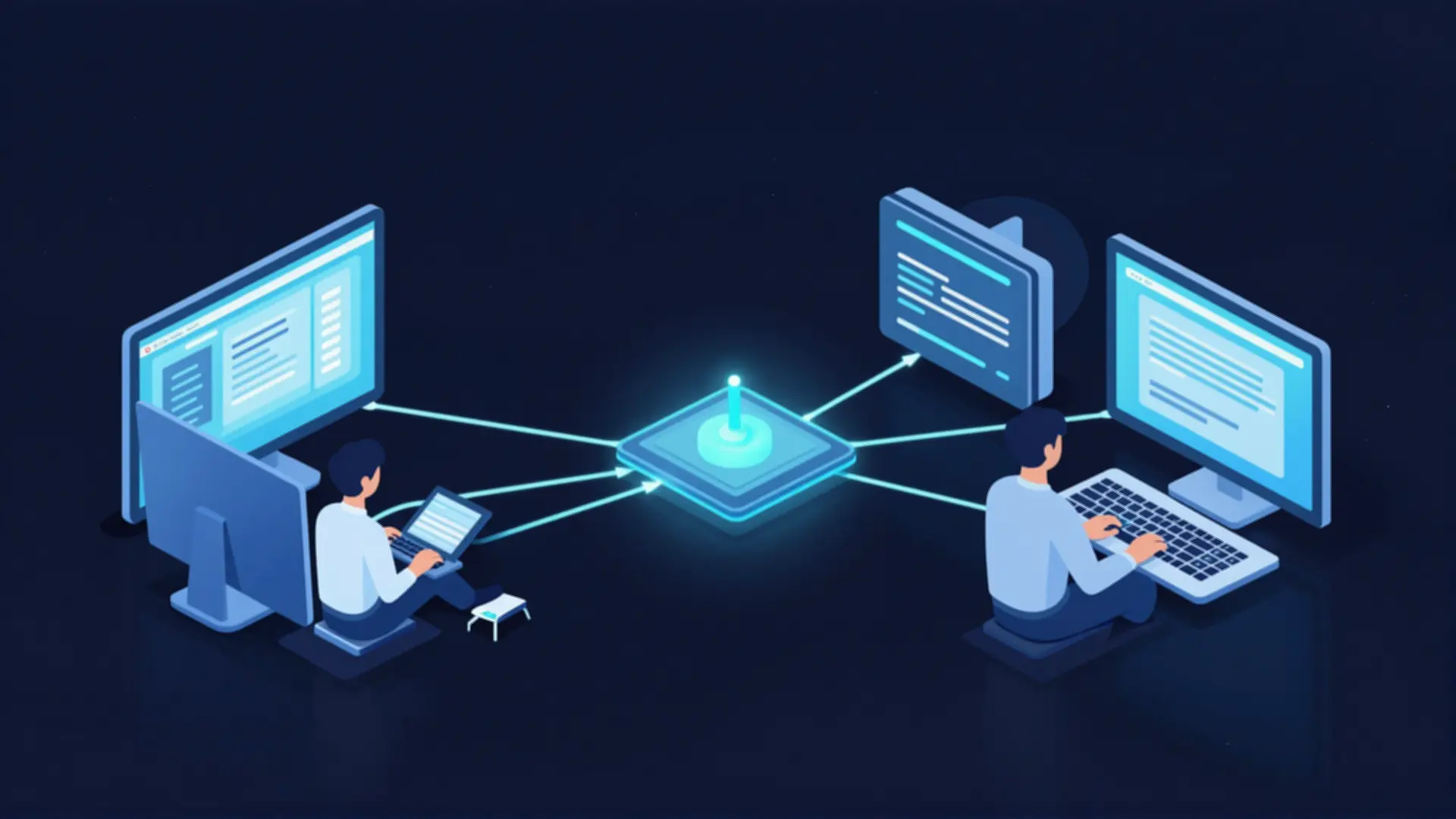
Table of Contents
- Why Self-Host Your Remote Desktop?
- Architecture: How RustDesk Works
- Docker Compose Setup
- Port Forwarding
- Getting Your Public Key
- Client Configuration
- Security Considerations
- The Default Setup Has No Authentication
- Option 1: VPN Front Door
- Option 2: Reverse Proxy with Auth
- Option 3: Firewall IP Restrictions
- Performance
- vs The Alternatives
- TeamViewer
- AnyDesk
- Parsec
- Chrome Remote Desktop
- Troubleshooting
- ”Can’t connect to ID server”
- ”Key mismatch”
- ”Relay connection stuck”
- ”Video stuttering”
- Quick Reference
- The Bottom Line
Every remote desktop solution has a catch. TeamViewer costs $49/month for commercial use. AnyDesk requires an account. Chrome Remote Desktop needs Google. Parsec is gaming-focused.
RustDesk is different. It’s fully open-source (AGPL-3.0), works on every platform, and — most importantly — lets you host your own server.
No subscription fees. No third-party servers. Your data stays on your infrastructure.
Why Self-Host Your Remote Desktop?
The default RustDesk client uses RustDesk’s public servers. That works fine for casual use. But if you’re:
- Running a homelab — You already have infrastructure
- Privacy-conscious — You want complete control over connection data
- Cost-sensitive — TeamViewer’s $588/year adds up
- Security-focused — You want granular access control
… self-hosting is the logical next step.
| Feature | RustDesk Self-Hosted | TeamViewer |
|---|---|---|
| Cost | Free | $49+/month |
| Data routing | Your server | Their servers |
| Account required | No | Yes |
| Session limits | None | Free tier limited |
| License | AGPL-3.0 (open) | Proprietary |
Architecture: How RustDesk Works
RustDesk has two server components:
- hbbs (ID/Register Server) — Handles client registration, discovery, and signaling. Think of it as the “phonebook” that lets clients find each other.
- hbbr (Relay Server) — Handles data relay when direct P2P fails. The backup path when NAT traversal doesn’t work.
The ideal path:
Client A ←──P2P──→ Client B
        (direct WebRTC)
When NAT blocks direct connection:
Client A ←──→ hbbr Relay ←──→ Client B
              (your server)
Your relay server only sees encrypted traffic. RustDesk uses end-to-end encryption — even the relay can’t read your screen.
Docker Compose Setup
Create your docker-compose.yml:
version: '3'
services:
  hbbs:
    image: rustdesk/rustdesk-server:latest
    container_name: hbbs
    command: hbbs -r your-domain.com:21117
    volumes:
      - ./data/hbbs:/root
    ports:
      - "21115:21115"
      - "21116:21116"
      - "21116:21116/udp"
      - "21118:21118"
    restart: unless-stopped

  hbbr:
    image: rustdesk/rustdesk-server:latest
    container_name: hbbr
    command: hbbr
    volumes:
      - ./data/hbbr:/root
    ports:
      - "21117:21117"
      - "21119:21119"
    restart: unless-stopped
Replace your-domain.com with your actual domain or IP address.
# Start the server
docker compose up -d

# Verify containers are running
docker ps | grep rustdesk
Port Forwarding
Your router needs to forward these ports:
| Port | Protocol | Purpose |
|---|---|---|
| 21115 | TCP | NAT type testing |
| 21116 | TCP/UDP | ID registration, heartbeat |
| 21117 | TCP | Relay services |
| 21118 | TCP | Web client (optional) |
| 21119 | TCP | Web client relay (optional) |
The bare minimum: 21115, 21116 (TCP+UDP), and 21117. Ports 21118/21119 are only needed if you want the web-based client.
Getting Your Public Key
Clients need your server’s public key to verify they’re connecting to the right place.
# Option 1: From Docker logs
docker logs hbbs 2>&1 | grep -i key

# Option 2: From the data file
cat ./data/hbbs/id_ed25519.pub
Copy that long string. Every client will need it.
Client Configuration
Install RustDesk on any platform:
- Windows/macOS/Linux: Download from rustdesk.com
- Android/iOS: App Store / Play Store
Configure the client:
- Open RustDesk → Settings (gear icon)
- Network → ID/Relay Server
- Enter:
- ID Server:
your-domain.comor your public IP - Relay Server:
your-domain.com(same as ID server) - Key: Paste your public key
- ID Server:
- Click OK
The client will now register with your server instead of RustDesk’s public servers.
Testing: Your RustDesk ID should show in the client. On another device, enter that ID and try to connect.
Security Considerations
The Default Setup Has No Authentication
By default, anyone with your server IP and public key can connect. For internal homelab use, that’s often fine. For internet exposure, consider additional layers:
Option 1: VPN Front Door
The cleanest approach — put RustDesk behind WireGuard or Tailscale:
Your Device (VPN client)
    ↓ (encrypted tunnel)
VPN Server (on your network)
    ↓
RustDesk hbbs/hbbr
Clients connect via the VPN, so you don’t expose RustDesk ports to the internet.
Option 2: Reverse Proxy with Auth
Put Nginx or Caddy in front with basic authentication:
# Example: Restrict /api endpoints
location /api/ {
    auth_basic "RustDesk";
    auth_basic_user_file /etc/nginx/.htpasswd;
    proxy_pass http://localhost:21118;
}
Option 3: Firewall IP Restrictions
If you have a static IP, restrict access:
# UFW example
ufw allow from YOUR_STATIC_IP to any port 21115:21119 proto tcp
Performance
RustDesk uses WebRTC for direct P2P connections when possible. In practice:
| Scenario | Latency | Notes |
|---|---|---|
| Same LAN | 5-15ms | Local network, no relay |
| Same continent (P2P) | 20-50ms | Direct connection |
| Cross-continent (P2P) | 80-150ms | Direct connection |
| Relay mode | +20-50ms | Depends on server location |
The relay only activates when NAT traversal fails. Most connections find a direct P2P path.
vs The Alternatives
TeamViewer
TeamViewer: $49/month, session limits on free tier, commercial use requires license
RustDesk: Free, unlimited
AnyDesk
AnyDesk: Free tier limited, requires account, proprietary
RustDesk: No account, open source
Parsec
Parsec: Gaming-optimized, limited headless support, account required
RustDesk: General-purpose, true headless mode
Chrome Remote Desktop
Chrome RD: Requires Google account, no self-hosting
RustDesk: Account-free, complete self-hosting
Troubleshooting
”Can’t connect to ID server”
- Check port forwarding (21116 TCP/UDP)
- Verify your domain resolves to the correct IP
- Check firewall allows inbound connections
”Key mismatch”
- Re-copy the public key from server logs
- Ensure no extra whitespace or line breaks
”Relay connection stuck”
- Verify port 21117 is open
- Check hbbr container logs:
docker logs hbbr
”Video stuttering”
- Check bandwidth — both clients need sufficient upload
- Try reducing quality in RustDesk settings
- Verify you’re using wired connections (WiFi hurts latency)
Quick Reference
# Start server
docker compose up -d

# Get public key
docker logs hbbs 2>&1 | grep Key

# Check status
docker ps | grep rustdesk

# View logs
docker logs hbbs
docker logs hbbr
The Bottom Line
Self-hosting RustDesk gives you:
- Zero subscription fees
- Complete data sovereignty
- Unlimited devices and sessions
- Control over routing and relay
For homelabbers already running Docker, it’s a 10-minute setup with lasting benefits. Skip the subscription treadmill — your remote desktop should be yours.
Last updated: March 2026. RustDesk server version 1.1.x.


Comments
Powered by GitHub Discussions