llama.cpp: High-Performance LLM Inference on Your Local Machine
Run powerful language models locally with minimal resources. A complete guide to llama.cpp, from setup to advanced optimizations.
Table of Contents
- What Is llama.cpp?
- Why It Matters
- Key Features
- GGUF: The Model Format That Changed Everything
- Quantization: Running Bigger Models on Smaller Hardware
- GPU Offloading: Run Models Larger Than Your VRAM
- Hardware Acceleration Backends
- Getting Started
- Installation
- Downloading Models
- Basic Usage
- Essential Flags
- Performance Tips
- 1. Quantization Selection
- 2. GPU Layer Tuning
- 3. Batch Size and Context
- 4. Multi-GPU Setups
- 5. Prompt Processing Optimization
- Hardware-Specific Advice
- Comparison: llama.cpp vs Alternatives
- llama.cpp vs Ollama
- llama.cpp vs text-generation-webui
- llama.cpp vs LM Studio
- The Real Answer
- Practical Recommendations
- Choosing Your Setup
- Model Selection
- Hardware Reality Check
- Conclusion
The cloud is convenient—until it isn’t. API costs stack up, rate limits bite when you need them least, and sending sensitive data to someone else’s servers isn’t always an option. Running language models locally sounds great in theory, but most solutions demand enterprise hardware or come with setup complexity that makes grown developers weep.
Enter llama.cpp—a C++ inference engine that somehow manages to be both screaming fast and surprisingly humble about hardware requirements. Created by Georgi Gerganov in March 2023, it’s become the backbone of local AI, quietly powering everything from Ollama to LM Studio while asking for almost nothing in return.
What Is llama.cpp?
llama.cpp is a minimal-dependency inference engine for running large language models locally. The name reflects its origins—it started as a way to run LLaMA models—but has since expanded to support dozens of model families including Mistral, Qwen, Gemma, Phi, DeepSeek, and beyond.

What makes it special:
- Pure C/C++ implementation with no external dependencies—compile it anywhere, run it everywhere
- Memory-mapped model loading via GGUF format for instant startup
- Broad hardware support from Raspberry Pi to multi-GPU servers
- First-class Apple Silicon support that makes Macs oddly competitive for AI work
The project lives under the ggml-org umbrella, the same team behind the GGML tensor library that makes efficient inference possible. It’s MIT licensed, actively developed, and powers more of the local AI ecosystem than most people realize.
Why It Matters
If you’ve used Ollama, LM Studio, text-generation-webui, LocalAI, or GPT4All—you’ve used llama.cpp. They all build on top of it. That’s not coincidence; it’s recognition that llama.cpp solved the hard problem of efficient local inference so everyone else could focus on user experience.
The real value: you don’t need a datacenter to run capable models. A quantized 7B model runs on a laptop. A 70B model fits on a Mac Studio with unified memory. And with hybrid CPU/GPU offloading, you can run models larger than your VRAM would traditionally allow.
Key Features
GGUF: The Model Format That Changed Everything
GGUF (GPT-Generated Unified Format) is llama.cpp’s native model format and arguably its most important contribution to the ecosystem. Before GGUF, running LLMs locally meant juggling separate weight files, tokenizer configs, and metadata—a mess that broke regularly.
GGUF packs everything into one file:
| Component | Description |
|---|---|
| Model weights | Quantized tensor data |
| Tokenizer | Vocabulary and merge rules |
| Metadata | Architecture, parameters, quantization info |
| Prompt template | Chat format (when provided) |
The result: download a single .gguf file, point llama.cpp at it, and you’re running. No configuration files. No tokenizer hunting. No architecture guessing.
Memory-mapping means the file loads instantly—the OS handles paging in only what’s needed. Running a 70B model? You don’t need 70GB of RAM upfront; the OS brings in pages as you use them.
Quantization: Running Bigger Models on Smaller Hardware
Quantization is where llama.cpp really shines. The project supports an extensive range of quantization methods that compress model weights dramatically with minimal quality loss.
The sweet spot: Q4_K_M
Q4_K_M (4-bit K-quantization, medium size) is the community’s go-to recommendation. It reduces model size by roughly 75% compared to FP16 while preserving most of the original quality. A 13B model that would need 26GB in FP16 fits in ~7GB quantized.
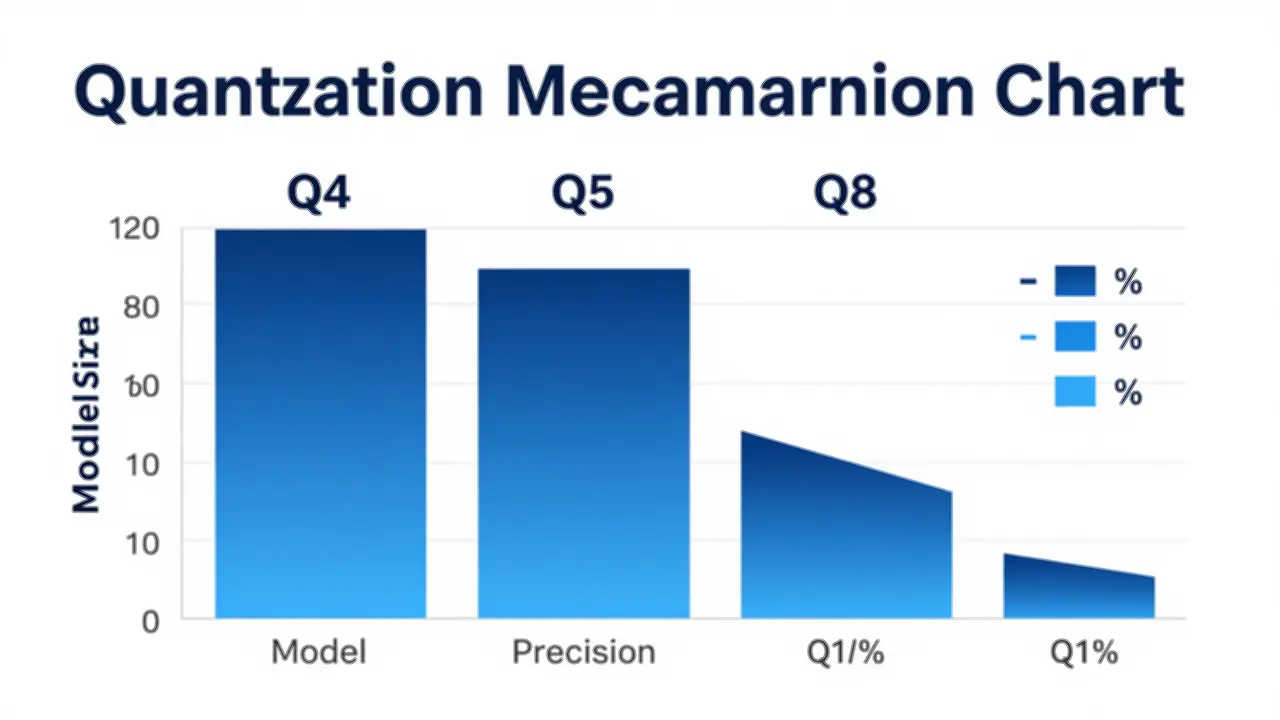
Quantization levels at a glance:
| Level | Size Reduction | Quality | Use Case |
|---|---|---|---|
| Q2 | ~90% | Noticeable loss | Extreme constraints |
| Q3 | ~85% | Acceptable | Memory-constrained |
| Q4 | ~75% | Excellent | Recommended default |
| Q5 | ~70% | Near-original | Quality-focused |
| Q6 | ~65% | Original+ | Paranoid about quality |
| Q8 | ~60% | Identical | Benchmark baseline |
The K-quants (Q3_K_S, Q4_K_M, Q5_K_M, Q6_K) allocate bits intelligently—more precision for important layers, less for less-critical ones. If you’re not sure where to start, Q4_K_M is rarely wrong.
I-quants (importance matrix quantization) go further, using calibration data to determine which weights matter most. They’re the best option for aggressive compression when every byte counts.
GPU Offloading: Run Models Larger Than Your VRAM
Here’s the thing about GPU memory: it’s expensive and there’s never enough of it. llama.cpp’s solution is elegant—offload what fits on the GPU, run the rest on CPU.
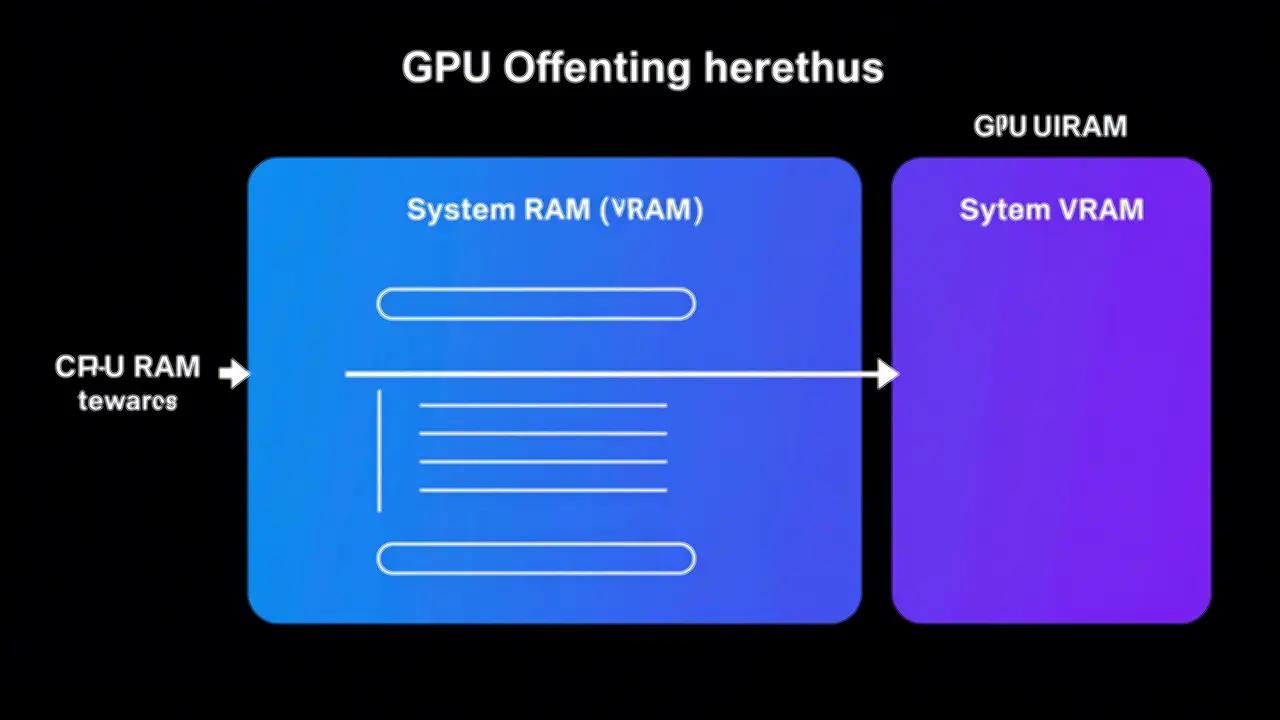
The --gpu-layers (or -ngl) flag controls this:
# Run everything on CPU
llama-cli -m model.gguf

# Offload 35 layers to GPU (common for 7B models)
llama-cli -m model.gguf -ngl 35

# Offload all layers (requires enough VRAM)
llama-cli -m model.gguf -ngl 99
Practical reality: You don’t need a 48GB GPU to run a 70B model. With aggressive quantization (Q4_K_M) and partial GPU offloading, you can run large models on consumer hardware. The inference won’t be as fast as full GPU, but it works—and that’s the point.
Hardware Acceleration Backends
llama.cpp doesn’t play favorites with hardware. It supports:
| Backend | Platform | Notes |
|---|---|---|
| CUDA | NVIDIA GPUs | Primary GPU backend, custom kernels |
| Metal | Apple Silicon | First-class support, M-series optimization |
| Vulkan | Cross-platform | AMD, Intel, broader GPU support |
| ROCm/HIP | AMD GPUs | AMD-specific acceleration |
| SYCL | Intel GPUs | Intel Arc and integrated graphics |
| CPU | All platforms | Optimized kernels for x86/ARM/RISC-V |
Apple Silicon users get special treatment. The Metal backend combined with unified memory (M-series chips share memory between CPU and GPU) means a Mac Studio with 192GB unified memory can run 70B+ models entirely in memory. No swapping, no fighting with CUDA drivers, no NVIDIA dependencies.
Getting Started
Installation
The easiest path depends on your platform:
macOS (Homebrew):
brew install llama.cppLinux (from source):
git clone https://github.com/ggml-org/llama.cpp
cd llama.cpp
make
Windows (winget):
winget install llama.cppDocker:
docker run ghcr.io/ggml-org/llama.cpp:server -m model.ggufFor GPU acceleration, you’ll need to compile with the appropriate backend. The build system detects available hardware—run make with CUDA installed and it’ll enable GPU support.
Downloading Models
The easiest way is direct from Hugging Face:
# Download and run in one command
llama-cli -hf ggml-org/gemma-3-1b-it-GGUF
Or manually browse Hugging Face GGUF models. Popular model families:
- General purpose: LLaMA 3, Mistral 7B, Qwen2
- Code: DeepSeek Coder, CodeLlama, StarCoder
- Multimodal: LLaVA, Qwen2-VL, Moondream
- Small/Edge: Phi-3, Gemma 2B, Qwen 1.5B
Basic Usage
Interactive chat:
llama-cli -m model.gguf -ngl 35 --colorOpenAI-compatible server:
llama-server -m model.gguf --port 8080The server mode exposes an OpenAI-compatible API, making it a drop-in replacement for applications built against OpenAI’s API.
Essential Flags
| Flag | Purpose |
|---|---|
-m | Path to GGUF model |
-ngl | GPU layers to offload |
-c | Context window size |
-n | Max tokens to generate |
--temp | Sampling temperature |
-t | CPU threads |
--ctx-size | Context window (default 512) |
Performance Tips
1. Quantization Selection
Start with Q4_K_M. It’s the community standard for good reason—excellent quality at 25% of the original size.
- Need smaller? Try Q3_K_M or consider I-quants with importance matrices
- Need better quality? Q5_K_M or Q6_K
- Benchmarking? Q8_0 for baseline, but it’s rarely worth the extra size in production
2. GPU Layer Tuning
Find your offloading sweet spot:
# Start conservative
llama-cli -m model.gguf -ngl 20

# Increase until you hit VRAM limit
llama-cli -m model.gguf -ngl 35
llama-cli -m model.gguf -ngl 40  # If this fails, back off
More GPU layers = faster inference. But overshoot your VRAM and it’ll crash or fall back to CPU.
3. Batch Size and Context
Larger batch sizes (-b) speed up prompt processing but consume more memory. Context size (-c) affects how much text the model can “see”—larger contexts need more memory.
# Longer context for document work
llama-cli -m model.gguf -c 8192

# Smaller context for chat (saves memory)
llama-cli -m model.gguf -c 2048
4. Multi-GPU Setups
llama.cpp supports multi-GPU inference with automatic distribution. New “split mode graph” in recent versions can deliver 3-4x speedup on multi-GPU systems:
# Enable split mode for multiple GPUs
llama-cli -m model.gguf -ngl 99 --split-mode layer
5. Prompt Processing Optimization
For long prompts, enable flash attention and tune batch size:
llama-cli -m model.gguf --flash-attn -b 512Hardware-Specific Advice
NVIDIA GPU users: CUDA is your backend. Ensure you have the latest drivers and CUDA toolkit for best performance.
Apple Silicon users: Metal is first-class. Unified memory means you can run models that would need discrete GPU VRAM on other platforms. A Mac Studio with 192GB unified memory can run 70B+ models entirely in memory.
AMD GPU users: ROCm/HIP or Vulkan backends. ROCm is faster but requires supported cards. Vulkan is broader but slower.
CPU-only users: Ensure AVX2/AVX512 support is enabled in your build. The optimized kernels can deliver 30-500% improvement over baseline.
Comparison: llama.cpp vs Alternatives
The local LLM space has matured rapidly. Here’s how llama.cpp stacks up against popular alternatives.
llama.cpp vs Ollama
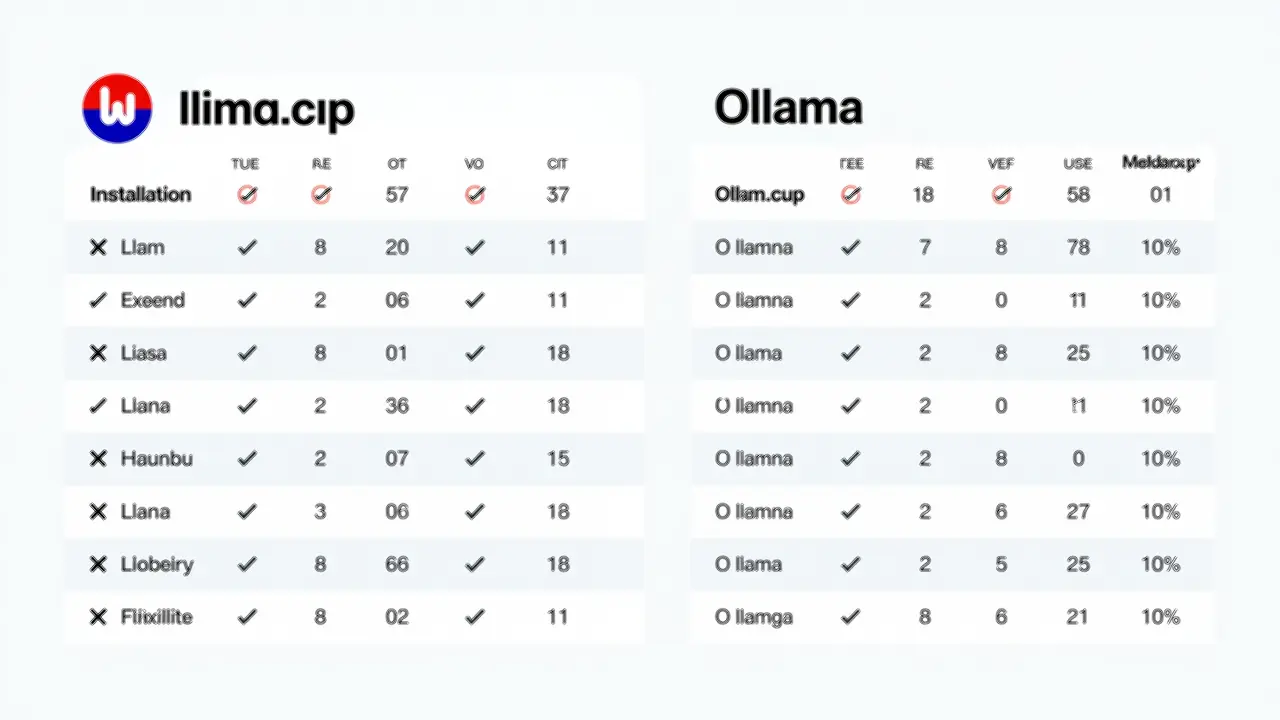
| Aspect | llama.cpp | Ollama |
|---|---|---|
| Philosophy | Engine-first, maximum flexibility | UX-first, opinionated defaults |
| Installation | Compile or package manager | Single binary, seamless |
| Model management | Manual GGUF files | Built-in model library |
| Configuration | Extensive flags, granular control | Simple Modelfile, limited tuning |
| API | OpenAI-compatible server | OpenAI-compatible server |
| Best for | Developers, researchers, fine-tuning | Quick local LLM setup |
Ollama is llama.cpp with training wheels. That’s not a criticism—it’s a design choice. Ollama wraps llama.cpp with better UX: ollama pull mistral downloads and runs a model in seconds. ollama run mistral gives you a chat interface. Modelfiles let you configure prompts and parameters without memorizing flags.
Use Ollama when: You want something that just works with minimal configuration. Use llama.cpp when: You need granular control, are benchmarking, debugging performance, or building on top of the engine.
llama.cpp vs text-generation-webui
| Aspect | llama.cpp | text-generation-webui |
|---|---|---|
| Interface | CLI + server | Gradio web UI |
| Model support | GGUF only | Multiple loaders (GGUF, HF, etc.) |
| Features | Inference focused | Chat, extensions, LoRA training |
| Complexity | Low | Higher (many options) |
| Best for | API/CLI workflows | Interactive chat with UI |
text-generation-webui (oobabooga) is the kitchen sink. It supports multiple inference backends including llama.cpp, Transformers, AutoGPTQ, and more. It provides a web interface for chat, character cards, extensions, and even LoRA training.
Use text-generation-webui when: You want a ChatGPT-like interface, character roleplay, or need access to multiple backend types. Use llama.cpp when: You’re building an application, working from CLI, or need maximum control.
llama.cpp vs LM Studio
| Aspect | llama.cpp | LM Studio |
|---|---|---|
| Interface | CLI + server | Native GUI application |
| Model discovery | Manual download | Built-in Hugging Face search |
| Configuration | Flags and config files | GUI sliders and dropdowns |
| Best for | CLI users, developers | GUI-preferring users |
LM Studio is llama.cpp wrapped in a native GUI. It offers built-in model search from Hugging Face, visualization of model cards, and sliders for configuration. Under the hood, it’s still llama.cpp doing the inference.
Use LM Studio when: You prefer GUI applications and visual configuration. Use llama.cpp when: You’re comfortable with CLI or need to script inference.
The Real Answer
Use all of them. They serve different purposes:
- llama.cpp is the engine—learn it for understanding and debugging
- Ollama is for quick, local development and testing
- LM Studio is for when you want a GUI experience
- text-generation-webui is for complex workflows, extensions, and multi-backend needs
They’re not competing as much as they’re complementary. Pick based on your task, not tribal loyalty.
Practical Recommendations
Choosing Your Setup
For beginners:
- Start with Ollama—it’s the gentlest on-ramp
- Graduate to llama.cpp when you need more control
- Explore quantization: Q4_K_M is your friend
For developers:
- Use llama.cpp directly for maximum control
- Run as server for API integration
- Tune GPU layers for your hardware
For researchers:
- llama.cpp with quantization experiments
- Benchmark different backends
- Test I-quants for compression research
Model Selection
The “best” model depends on your use case:
| Use Case | Recommended Model | Size |
|---|---|---|
| General chat | LLaMA 3 8B, Mistral 7B | 7-8B |
| Code assistance | DeepSeek Coder 6.7B, Qwen2.5-Coder | 7B |
| Edge/mobile | Phi-3 Mini, Qwen 1.5B, Gemma 2B | 1-3B |
| Quality tasks | LLaMA 3 70B (if hardware permits) | 70B |
| Multimodal | LLaVA 1.6, Qwen2-VL | 7-8B |
Hardware Reality Check
You don’t need a GPU to run local LLMs. You need a GPU to run them fast.
CPU-only is viable:
- 7B model, Q4 quantization: ~8GB RAM, readable speed
- Chat with 5-10 tokens/second on modern CPUs
- Fine for interactive use, slow for batch processing
GPU improves everything:
- 7B model on RTX 3060: 50+ tokens/second
- 13B model on RTX 4080: 30+ tokens/second
- 70B model, partial offload on RTX 3090: Usable
Apple Silicon is special:
- M2/M3 Max or Ultra with unified memory can run 70B+ entirely in memory
- No discrete GPU needed for large models
- Performance competitive with consumer GPUs
Conclusion
llama.cpp is the unsung infrastructure of the local AI movement. It’s not glamorous—it has no GUI, requires reading documentation, and assumes you know what a compiler is. But it’s fast, it’s flexible, and it runs everywhere.
The project’s success shows in its ecosystem adoption. If you’re running local LLMs through any popular tool, odds are llama.cpp is doing the actual inference work beneath. Understanding it—even if you don’t use it directly—helps you understand the entire local AI landscape.
Key takeaways:
- GGUF is the standard—one file, everything included, memory-mapped for instant loading
- Quantization makes local viable—Q4_K_M fits capable models on consumer hardware
- GPU offloading extends your reach—run models larger than your VRAM
- Apple Silicon is uniquely powerful—unified memory changes the math
- The ecosystem is deep—Ollama, LM Studio, and others are just friendly faces on llama.cpp
If you’re curious about local AI, start here. Download a GGUF model, run llama-cli -m model.gguf, and see what your hardware can actually do. The cloud is convenient—but autonomy has its own appeal.
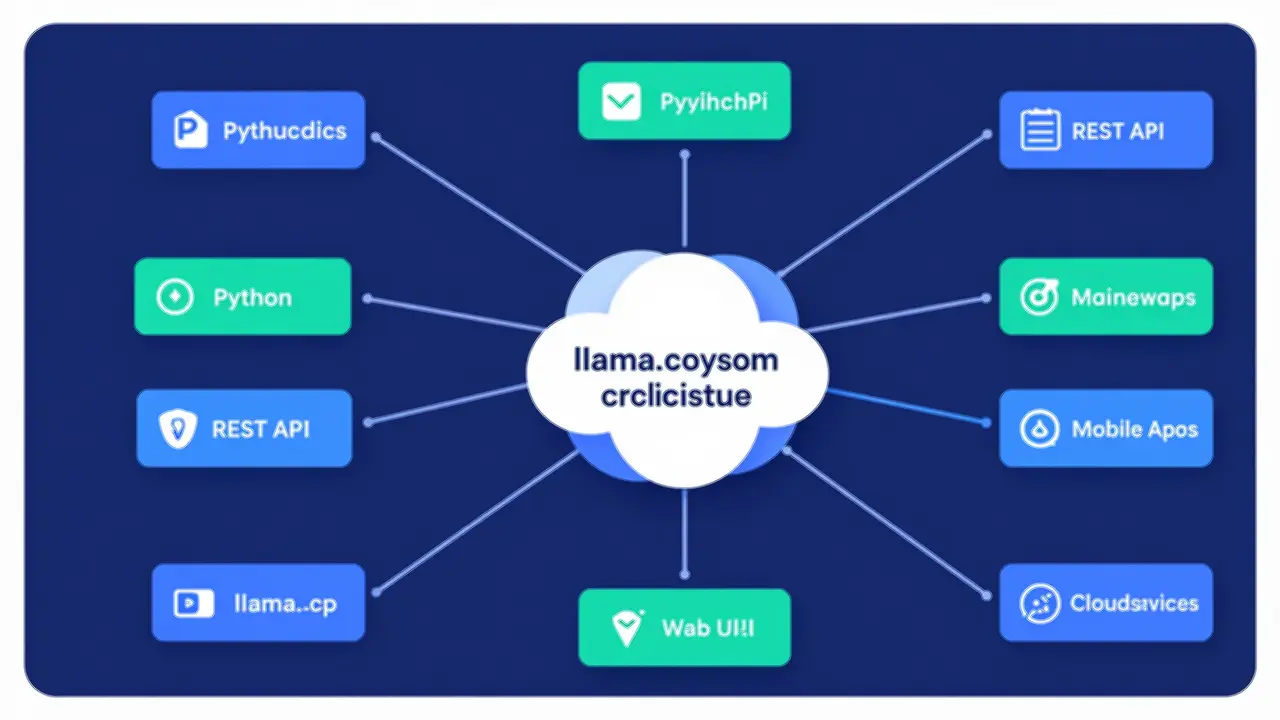
For more information, visit the llama.cpp GitHub repository or explore Hugging Face GGUF models.

Comments
Powered by GitHub Discussions