Fixing OOM Errors in ComfyUI with LTX-2.3 and NVIDIA RTX 5060 Ti
Optimize ComfyUI for LTX-2.3 video generation on your RTX 5060 Ti 16GB. Learn the exact settings, precision modes, and memory limits to eliminate OOM errors.
Table of Contents
- Understanding the Memory Challenge
- RTX 5060 Ti 16GB Specifications
- LTX-2.3 Memory Requirements by Model Variant
- Essential ComfyUI Launch Arguments
- What Each Flag Does
- Alternative Launch Configurations
- Model Selection: Choosing the Right Variant
- Recommended: GGUF Q4_0 Distilled
- Why Not FP8?
- SageAttention Integration
- Resolution Limits and Safe Operating Ranges
- Safe Resolution Guidelines
- Workflow Strategy
- VAE Optimization Techniques
- Use Tiled VAE Decode
- VAE Precision Settings
- Managing Long Video Projects
- Chunked Generation Method
- Creating Frame Continuity
- Common OOM Scenarios and Fixes
- ”CUDA Out of Memory” During Model Load
- “Out of Memory” During VAE Decode
- Random Stalls or System Freezes
- ”Kernel launch failed” Error
- Batch Size vs Batch Count
- Recommendation for RTX 5060 Ti
- RTX 50-Series Specific Advantages
- FP8 Native Support
- NVFP4 Format
- Weight Streaming
- Complete Working Configuration
- Launch Command
- Model
- Resolution
- SageAttention Node
- VAE Decode (Tiled)
- Empty Latent Image
- When to Upgrade
- Troubleshooting Checklist
- Resources
The NVIDIA RTX 5060 Ti with 16GB of GDDR7 VRAM sits at an interesting price point for AI video generation. It’s powerful enough to run modern models, but right at the edge of what’s needed for LTX-2.3 video generation. If you’re hitting out-of-memory (OOM) errors, you’re not alone—and you’re not out of luck.
This guide covers the exact settings, quantization options, and workflow adjustments that make LTX-2.3 work reliably on your RTX 5060 Ti 16GB.
Understanding the Memory Challenge
RTX 5060 Ti 16GB Specifications
| Specification | Value |
|---|---|
| VRAM | 16GB GDDR7 |
| CUDA Cores | 4,608 |
| Memory Bandwidth | 672 GB/s |
| Architecture | Blackwell (GB206-300) |
| Process | 5nm |
| TDP | 180W |
The 16GB buffer puts this card in a challenging spot for LTX-2.3. The full-precision model demands around 46GB of VRAM—nearly three times what’s available. But Blackwell’s fifth-generation Tensor Cores unlock precision formats that change the equation dramatically.
LTX-2.3 Memory Requirements by Model Variant
| Model Variant | VRAM Required | RTX 5060 Ti Compatible? |
|---|---|---|
| FP32 (full) | ~46GB | ❌ No |
| FP16 | ~23GB | ❌ No |
| FP8 | ~23GB | ⚠️ Borderline |
| GGUF Q4 | ~18GB | ✅ Yes (tight) |
| GGUF Q4_0 Distilled | ~12.3GB | ✅ Yes (recommended) |
The distilled GGUF Q4_0 variant is your best bet. It fits comfortably within 16GB with room for the rest of your workflow.
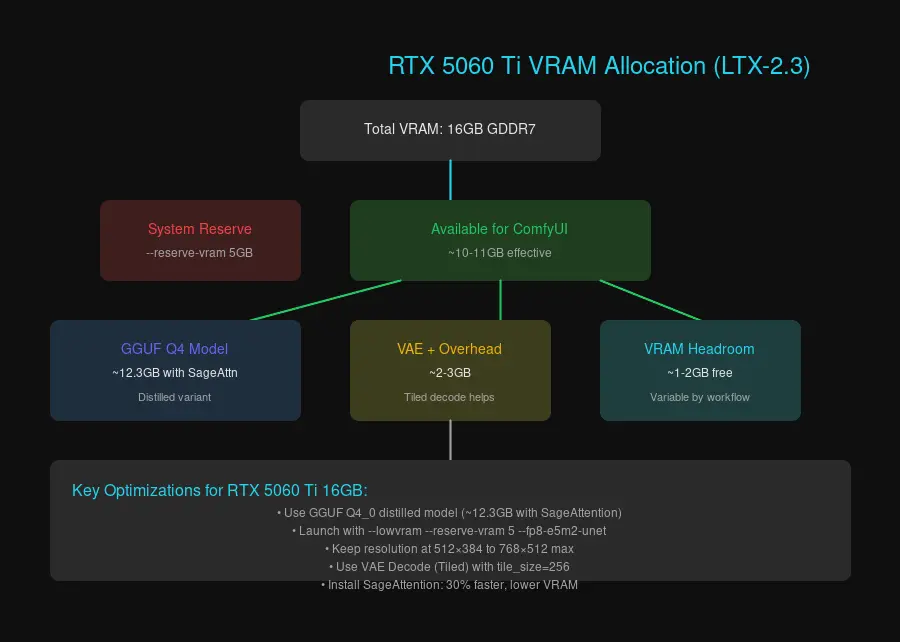 Memory allocation breakdown for LTX-2.3 on RTX 5060 Ti 16GB
Essential ComfyUI Launch Arguments
Start ComfyUI with these arguments to optimize memory for LTX-2.3:
python main.py --lowvram --reserve-vram 5 --fp8-e5m2-unetWhat Each Flag Does
--lowvram: Splits the UNET model into smaller chunks and offloads parts to system RAM. This is essential for 16GB cards running LTX-2.3. You’ll see slightly longer generation times, but it prevents crashes.
--reserve-vram 5: Reserves 5GB of VRAM for the operating system and other processes. Without this, ComfyUI might try to use every last megabyte, making your system unstable.
--fp8-e5m2-unet: Uses FP8 precision for the UNET model. Blackwell GPUs handle FP8 natively with excellent quality retention.
Alternative Launch Configurations
If you’re still hitting OOM:
# More aggressive memory management
python main.py --lowvram --reserve-vram 6 --use-split-cross-attention

# Last resort (very slow but stable)
python main.py --novram --reserve-vram 2
Model Selection: Choosing the Right Variant
Recommended: GGUF Q4_0 Distilled
Download the distilled Q4_0 variant of LTX-2.3:
ltx-video-2.3-distilled-Q4_0.ggufThis model runs at approximately 12.3GB VRAM with SageAttention enabled, leaving headroom for:
- VAE decode
- Tokenizer and text encoders
- System overhead
Why Not FP8?
FP8 models technically fit on 16GB cards, but the margins are thin. Any additional nodes in your workflow— ControlNet adapters, upscalers, or secondary models—can push you over the limit. GGUF Q4 gives you more breathing room.
SageAttention Integration
SageAttention reduces memory consumption by 30-35% and speeds up generation. Install it:
pip install triton sageattentionIn your ComfyUI workflow, add a “Patch Sage Attention” node and set the backend to:
sageattn_qk_int8_pv_fp16_cudaDon’t use the --use-sage-attention CLI flag—it can cause compatibility issues with some models. The node-based approach is more reliable.
Resolution Limits and Safe Operating Ranges
Starting resolution matters more than output resolution. LTX-2.3 generates video from latents, and the latent size directly impacts VRAM consumption.
Safe Resolution Guidelines
| Safety Level | Starting Resolution | Notes |
|---|---|---|
| Conservative | 512 × 384 | Always works |
| Moderate | 768 × 512 | May need VAE offload |
| Aggressive | 1024 × 640 | Requires all optimizations |
Workflow Strategy
- Generate at lower resolution first (512 × 384)
- Upscale afterward using RTX Video Super Resolution or another upscaler
- Keep frame count low (25-50 frames to start)
This two-pass approach is faster and more reliable than trying to generate at high resolution directly.
VAE Optimization Techniques
Use Tiled VAE Decode
OOM most commonly occurs during the VAE decode step—the final stage where latents become video frames. Replace your standard VAE Decode node with “VAE Decode (Tiled)” and set:
tile_size: 256
overlap: 64
Lower tile sizes use less VRAM but take longer. Start at 256 and increase if you have VRAM headroom.
VAE Precision Settings
For best quality on RTX 50-series:
--fp32-vae # Best quality, more VRAMFor memory-constrained situations:
--fp16-vae # Saves ~2GB VRAMBlackwell handles FP16 well, so the quality difference is minimal.
Managing Long Video Projects
LTX-2.3 on 16GB VRAM has limits. If you need longer videos, generate in segments:
Chunked Generation Method
- Generate 2-3 seconds (50-75 frames) at a time
- Save the last frame as an image
- Use the last frame as the first-frame input for the next segment
- Stitch segments together with ffmpeg:
ffmpeg -f concat -i segments.txt -c copy output.mp4Creating Frame Continuity
In ComfyUI, use an “Image Saver” node or “Math Expression” node to pass the last generated frame as input to your next generation. This maintains visual continuity across chunks.
Common OOM Scenarios and Fixes
”CUDA Out of Memory” During Model Load
Cause: Model too large for available VRAM after system reservation.
Fix: Switch to GGUF Q4_0 distilled model, or use:
--lowvram --reserve-vram 6“Out of Memory” During VAE Decode
Cause: Latent tensor size exceeds VAE decode capacity.
Fix: Use VAE Decode (Tiled) with tile_size: 256.
Random Stalls or System Freezes
Cause: ComfyUI consuming all VRAM, starving the display.
Fix: Increase --reserve-vram to 6-8 GB. Yes, you’re “wasting” VRAM, but your system remains stable.
”Kernel launch failed” Error
Cause: PyTorch trying to allocate more memory than available.
Fix: This usually means you don’t have enough system RAM for offloading. Ensure you have at least 32GB system RAM, and close other applications.
Batch Size vs Batch Count
Understanding this distinction prevents many OOM errors:
Batch Size (in Empty Latent Image node): Number of samples processed simultaneously. Higher = more VRAM.
Batch Count (generation iterations): Number of sequential generations. Does NOT increase VRAM.
Recommendation for RTX 5060 Ti
- Batch Size: Always 1
- Batch Count: As high as you want
Processing multiple generations sequentially is safer than trying to parallelize them.
RTX 50-Series Specific Advantages
Blackwell architecture brings real advantages for LTX-2.3:
FP8 Native Support
Fifth-generation Tensor Cores handle FP8 with no performance penalty compared to FP16. On older architectures (Ampere, Ada), FP8 requires conversion overhead. On Blackwell, it’s native.
NVFP4 Format
For future-proofing, NVFP4 offers:
- 60% VRAM reduction over FP16
- 2.5× faster inference
Currently, NVFP4 model variants are limited, but this will change as the ecosystem matures.
Weight Streaming
ComfyUI on RTX 50-series can utilize system RAM more efficiently through weight streaming. Enable it in ComfyUI settings under “Memory Management” → “Enable weight streaming.”
Complete Working Configuration
Here’s a known-good configuration for RTX 5060 Ti 16GB:
Launch Command
python main.py --lowvram --reserve-vram 5 --fp8-e5m2-unet --fp32-vaeModel
ltx-video-2.3-distilled-Q4_0.ggufResolution
Width: 512
Height: 384
Frame Count: 49 (2 seconds at 24fps)
SageAttention Node
Backend: sageattn_qk_int8_pv_fp16_cudaVAE Decode (Tiled)
tile_size: 256
overlap: 64
Empty Latent Image
batch_size: 1This configuration should generate 2-second video clips reliably. From there, you can experiment with higher resolutions or longer frame counts—just add one change at a time to isolate what breaks.
When to Upgrade
If you consistently need:
- Resolution above 1024 × 640: Consider RTX 5070 Ti or higher (20GB+ VRAM)
- Frame counts above 100: Multi-chunk generation works, but patience wears thin
- Multiple ControlNet adapters: Each adapter adds VRAM overhead
The RTX 5060 Ti 16GB handles LTX-2.3 admirably for its price point. With quantized models and thoughtful workflow design, you can generate high-quality video content without the crashes.
Troubleshooting Checklist
Before asking for help, verify:
- Using GGUF Q4_0 distilled model variant
- ComfyUI launched with
--lowvram - VRAM reserved for system (
--reserve-vram 5) - Batch size set to 1
- Resolution starts at 512 × 384 or lower
- VAE Decode uses Tiled mode
- SageAttention installed and configured via node
- System RAM ≥ 32GB
- All GPU applications closed (browser, games, video players)
Resources
- NVIDIA RTX AI Garage Blog — Official LTX integration guide
- ComfyUI LTX-Video Plugin — Required custom nodes
- ComfyUI Wiki GPU Guide — Hardware recommendations
- SageAttention GitHub — Performance optimizations
Last updated: March 2026. Settings may evolve with ComfyUI and LTX-2.3 updates.

Comments
Powered by GitHub Discussions