How to Use Claude Code to Fix OpenClaw Issues
Learn how to leverage Anthropic Claude Code CLI to debug and fix issues in your OpenClaw self-hosted AI assistant.
Table of Contents
- What is Claude Code?
- Installing Claude Code
- Understanding OpenClaw Architecture
- Core Components
- Common OpenClaw Issues
- Environment Problems
- Gateway Startup Failures
- Plugin Crashes
- Authentication Errors
- Debugging Workflow with Claude Code
- Basic Diagnosis
- Non-Interactive Mode
- Auto-Fix Mode
- The --debug Flag
- Step-by-Step: Fixing a Gateway Crash
- The Scenario
- Step 1: Start Claude Code in Your OpenClaw Directory
- Step 2: Describe the Problem
- Step 3: Let Claude Code Investigate
- Step 4: Apply the Fix
- Step 5: Verify
- Advanced Techniques
- Tool Whitelisting
- Git Integration as Safety Net
- Using Hooks for Quality Control
- MCP for External Tools
- Best Practices
- 1. Always Read First
- 2. Sandbox Destructive Operations
- 3. Use --verbose for Learning
- 4. Combine with OpenClaw Diagnostics
- 5. Keep CLAUDE.md in Your Project
- Real-World Example: Fixing Authentication
- When to Use Claude Code vs. Manual Debugging
- Conclusion
Self-hosted AI assistants like OpenClaw give you complete control over your data and infrastructure. But with that control comes complexity—gateway crashes, plugin conflicts, configuration errors, and model authentication issues can leave you digging through logs for hours.
What if you could point an AI at your OpenClaw installation and have it read the code, analyze the errors, and suggest fixes? That’s exactly what Claude Code, Anthropic’s agentic coding CLI, was built for.
In this guide, we’ll walk through using Claude Code to diagnose and fix common OpenClaw issues, from gateway startup failures to plugin crashes.
What is Claude Code?
Claude Code is Anthropic’s command-line interface for AI-assisted development. Unlike traditional chatbots that only generate text, Claude Code is agentic—it can:
- Read and understand your entire codebase
- Execute shell commands
- Modify files directly
- Create Git commits and pull requests
- Run tests and verify fixes
This makes it ideal for debugging complex systems like OpenClaw, where issues span multiple components (gateway, agents, plugins, channels, and memory layers).
Installing Claude Code
The native installer is the recommended approach:
# macOS/Linux/WSL
curl -fsSL https://claude.ai/install.sh | bash

# Windows PowerShell
irm https://claude.ai/install.ps1 | iex
Alternatively, use package managers:
# Homebrew (macOS/Linux)
brew install --cask claude-code

# WinGet (Windows)
winget install Anthropic.ClaudeCode
After installation, navigate to your OpenClaw directory and run claude to start. You’ll be prompted to log in on first use.
Requirements: Claude Code requires a Pro, Max, Teams, or Enterprise account. The free Claude.ai plan doesn’t include CLI access.
Understanding OpenClaw Architecture
Before debugging, it helps to understand what you’re debugging. OpenClaw uses a hub-and-spoke architecture centered around the Gateway.
Core Components
The Gateway is the central WebSocket server that:
- Manages sessions and routes messages
- Handles connections from messaging channels (Telegram, WhatsApp, Discord, etc.)
- Serves the browser-based Control UI
- Coordinates between channels and your AI agent
Agents are the “brains” that:
- Make LLM calls (model-agnostic: OpenAI, Anthropic, Google, Ollama)
- Maintain conversation memory
- Execute tools and automation tasks
- Integrate with retrieval systems
Plugins extend functionality by:
- Adding new tools the agent can use
- Registering HTTP routes and RPC methods
- Providing background services
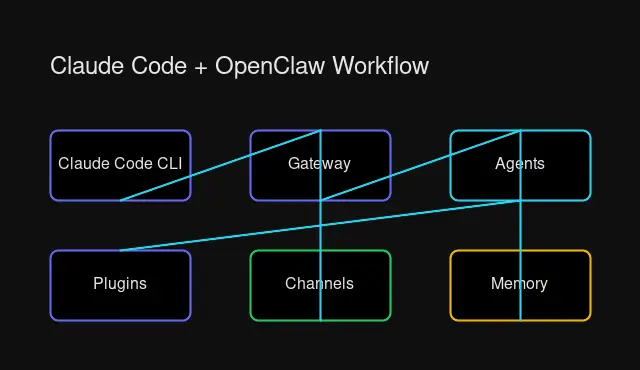 OpenClaw’s Gateway-centric architecture with agents, plugins, and channels
This architecture is powerful but complex—problems can cascade across components, making debugging challenging.
Common OpenClaw Issues
Let’s review the most frequent problems you’ll encounter.
Environment Problems
Wrong Node.js version: OpenClaw requires Node.js 20 or newer. Older versions cause obscure syntax errors.
# Check your version
node --version

# Use nvm to switch
nvm install 20
nvm use 20
Missing build tools: On Debian/Ubuntu, many dependencies compile native modules:
sudo apt install build-essential git python3Gateway Startup Failures
“EADDRINUSE” - Port conflict:
Error: listen EADDRINUSE: address already in use :::18789This means another process is using the gateway port. Kill it or change the port:
# Find the process
lsof -i :18789

# Kill it
kill -9 <PID>
“set gateway.mode=local” - Configuration error:
The gateway mode isn’t set. Add to your openclaw.json:
{
  "gateway": {
    "mode": "local"
  }
}
“refusing to bind without auth” - Security error:
You’re trying to bind to a non-localhost address without authentication. Set a token:
{
  "gateway": {
    "mode": "remote",
    "token": "your-secure-token"
  }
}
Plugin Crashes
Sometimes the gateway starts then immediately dies. This often indicates a plugin loading issue:
WebSocket 1006 error
Gateway crashed during plugin initialization
Check gateway.err.log for stack traces:
cat ~/.openclaw/logs/gateway.err.logDisable the culprit:
openclaw plugins disable <plugin-name>Authentication Errors
| Error | Cause | Fix |
|---|---|---|
| 401 | Invalid API key | Verify key in openclaw.json |
| 403 | No model access | Check account permissions |
| 429 | Rate limited | Add rate-limiting proxy or wait |
Debugging Workflow with Claude Code
Now let’s see how Claude Code transforms troubleshooting from manual log-diving to guided debugging.
Basic Diagnosis
Navigate to your OpenClaw directory and start Claude Code:
cd ~/.openclaw
claude
Ask it to diagnose:
> My gateway keeps crashing. Can you read the error logs
  and tell me what's wrong?
Claude Code will:
- Read
gateway.err.log - Check
openclaw.jsonfor configuration issues - Identify the root cause
- Suggest specific fixes
Non-Interactive Mode
For scripts or CI/CD, use --print for one-shot queries:
claude -p "Read the gateway error logs and diagnose why startup fails"This runs the query and exits—perfect for automated diagnostics.
Auto-Fix Mode
Use with caution. The --permission-mode bypassPermissions flag lets Claude Code execute without asking:
claude --permission-mode bypassPermissions --print \
  "Fix the plugin configuration causing crashes and restart the gateway"
Claude Code will:
- Parse the error log
- Identify the problematic plugin
- Make the fix
- Suggest verification steps
Security tip: Always use Git to track changes, and consider running in a sandboxed environment for risky operations.
The --debug Flag
When you need more detail, the debug flag provides verbose logging:
claude --debug "Why is my Telegram channel not receiving messages?"This shows Claude Code’s internal decision-making process, useful for understanding what it’s analyzing.
Step-by-Step: Fixing a Gateway Crash
Let’s walk through a real scenario where Claude Code diagnoses and fixes a gateway crash.
The Scenario
Your OpenClaw gateway starts, shows “WebSocket 1006 error” in logs, then dies immediately. Terminal output:
$ openclaw gateway

  🦞 OpenClaw gateway starting...

✗ Gateway crashed: WebSocket connection failed
Step 1: Start Claude Code in Your OpenClaw Directory
cd ~/.openclaw
claude
Step 2: Describe the Problem
> My gateway crashes with "WebSocket 1006 error" right after starting.
  It started happening after I installed a new plugin yesterday.
  Can you diagnose and fix it?
Step 3: Let Claude Code Investigate
Claude Code will:
- Read
gateway.err.logfor error details - Check
openclaw.jsonfor configuration - Look for recent plugin installations
- Identify patterns in the stack trace
It might find something like:
I found the issue. The error log shows:

  Error: Cannot find module 'discord-connector/utils'
    at PluginManager.loadPlugin

This is coming from the "discord-voice-enhanced" plugin you installed yesterday.
The plugin is missing a dependency that wasn't installed.
Step 4: Apply the Fix
> Fix this issueClaude Code will:
- Disable the problematic plugin
- Suggest alternatives or dependency installation
- Verify the gateway starts correctly
I've disabled the "discord-voice-enhanced" plugin:

  openclaw plugins disable discord-voice-enhanced

Try starting the gateway now:

  openclaw gateway

If you want to use this plugin, you'll need to install its dependencies:

  cd ~/.openclaw/plugins/discord-voice-enhanced
  npm install
Step 5: Verify
openclaw gateway

  🦞 OpenClaw gateway online
  ✓ Gateway: localhost:18789
  ✓ Channels ready
Success! The gateway is running.
Advanced Techniques
Tool Whitelisting
For safer auto-fix operations, configure allowed tools in .claude/settings.json:
{
  "allowedTools": [
    "read_file",
    "write_file",
    "run_command:bash",
    "run_command:openclaw"
  ]
}
This restricts Claude Code to safe operations even in bypass mode.
Git Integration as Safety Net
Always commit your working state before letting Claude Code make changes:
git add -A
git commit -m "Snapshot before Claude Code debugging"
Now Claude Code’s changes are tracked and reversible:
# If something breaks
git checkout .
git clean -fd
Using Hooks for Quality Control
Claude Code supports hooks that run before or after actions:
// .claude/hooks.json
{
  "beforeFileEdit": "npm run lint",
  "afterCommand": "npm test"
}
This ensures code quality even with automated changes.
MCP for External Tools
Model Context Protocol lets Claude Code connect to external data sources:
# Register a custom MCP server
claude mcp add my-tools --command "node /path/to/mcp-server.js"
This could connect Claude Code to your OpenClaw logs database for deeper analysis.
Best Practices
1. Always Read First
Before fixing, understand. Use Claude Code to analyze rather than immediately modify:
> Read the gateway configuration and explain what each setting does2. Sandbox Destructive Operations
For risky changes, run Claude Code in a container or VM:
docker run -it -v ~/.openclaw:/workspace anthropic/claude-code3. Use --verbose for Learning
When learning OpenClaw’s internals:
claude --verbose "Explain how the gateway handles channel routing"The verbose output shows Claude’s reasoning process.
4. Combine with OpenClaw Diagnostics
Claude Code and openclaw doctor work well together:
# First, run OpenClaw's built-in diagnostics
openclaw doctor

# Then let Claude analyze the results
claude -p "Here's the output from openclaw doctor. What should I fix?"
5. Keep CLAUDE.md in Your Project
Create a CLAUDE.md file in your OpenClaw directory with project-specific context:
# OpenClaw Configuration

- Gateway mode: local
- Primary channel: Telegram
- Model: Claude 3 Opus via Anthropic API
- Key plugins: memory-redis, qdrant-adapter

## Known Issues

- Plugin X has a race condition on startup
- Use `openclaw gateway --delay 5` to work around timing
Claude Code automatically reads this file, giving it context about your specific setup.
Real-World Example: Fixing Authentication
Your OpenClaw setup keeps returning 403 errors from the model provider. Here’s how Claude Code helps:
cd ~/.openclaw
claude

> I'm getting 403 errors from Anthropic when trying to use Claude.
  Can you check my API key configuration and explain what's wrong?
Claude Code reads openclaw.json:
{
  "models": {
    "providers": {
      "anthropic": {
        "apiKey": "sk-ant-api03-xxxxx"
      }
    }
  }
}
And responds:
I found the issue. Your API key format is correct, but 403 errors typically
indicate permission issues, not key validity. Let me check what you're
trying to access:

Looking at your config, you're requesting Claude 3 Opus:
  "defaultModel": "claude-3-opus"

However, your Anthropic account may not have Opus access. 403 Forbidden
means the key is valid but the requested model isn't available.

Solutions:
1. Switch to Claude 3.5 Sonnet (available to all Pro accounts)
2. Check your Anthropic console for model permissions
3. Try the model in Claude.ai web interface first

To switch models:
Claude edits openclaw.json:
{
  "models": {
    "defaultModel": "claude-3-5-sonnet-20241022"
  }
}
Verification:
openclaw agent --message "test" --local

  Response: "Hello! How can I help you today?"
The fix worked.
When to Use Claude Code vs. Manual Debugging
Use Claude Code when:
- You’re unfamiliar with the OpenClaw codebase
- Error messages are cryptic or confusing
- You need to understand multi-component issues
- You want a second opinion on your diagnosis
Use manual debugging when:
- Issues are network-related (Claude Code runs locally)
- You need to inspect runtime state in real-time
- Security prevents sharing logs with external tools
- The issue is in a plugin Claude Code hasn’t seen
Conclusion
Claude Code transforms OpenClaw debugging from tedious log-reading into an interactive troubleshooting session. By combining Claude’s ability to read code, understand context, and execute commands with OpenClaw’s built-in diagnostics (openclaw doctor), you can resolve issues faster and learn your system in the process.
Key takeaways:
- Claude Code is agentic—it runs commands, not just generates text
- Use
--printfor one-shot queries,--permission-mode bypassPermissionsfor automation - Always Git-commit before letting Claude make changes
- Combine with
openclaw doctorfor comprehensive diagnostics - Keep a
CLAUDE.mdfile to give Claude context about your setup
The combination of a self-hosted AI assistant (OpenClaw) and an agentic coding tool (Claude Code) is powerful—you’re using AI to debug AI infrastructure, accelerating your feedback loop and reducing time to resolution.
Ready to debug smarter? Install Claude Code, point it at your OpenClaw configuration, and let it help you understand what’s broken.

Comments
Powered by GitHub Discussions